
Order-Related Settings – Full Configuration Guide
The Order-Related Settings section controls how orders are processed, completed, displayed, timed, validated, and finalized within the POS system. These settings directly affect operational speed, delivery accuracy, customer experience, and administrative control.
This section is especially important for delivery-focused restaurants and high-volume environments.
1. Quick Complete
The Quick Complete settings define how and when orders are automatically completed by the system.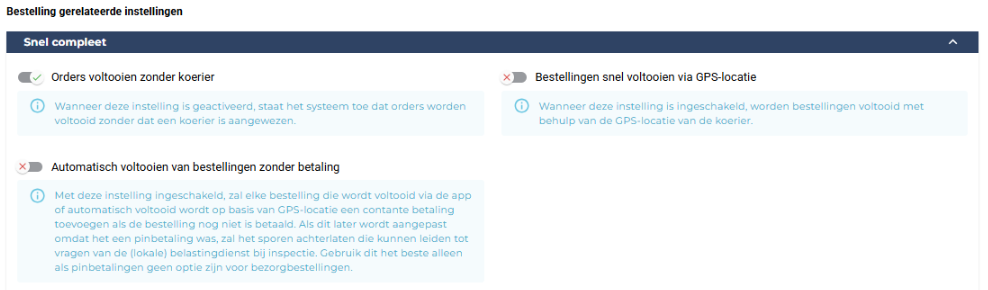
1.1 Complete Orders Without Courier
When enabled:
-
Orders can be completed without assigning a courier
-
Useful for pickup, eat-in, or internal workflows
-
Prevents blocking orders that do not require delivery
Recommended for:
Pickup-only restaurants or counter service operations.
1.2 Quickly Complete Orders Using GPS Location
When enabled:
-
Orders are automatically completed based on the courier’s GPS location
-
Completion occurs when the courier reaches the destination area
-
Reduces manual interaction during delivery
Recommended for:
Delivery businesses using driver tracking and GPS-based workflows.
1.3 Automatically Complete Orders Without Payment
When enabled:
-
Orders completed automatically (via app or GPS) will receive a cash payment if no payment was registered
-
Intended only for environments where cash is the only delivery payment method
Important warning:
If this is later changed to PIN or card payments, transaction tracking may become unclear and could raise questions during audits or tax inspections.
Use only when:
Cash payments are mandatory and no electronic payment options exist for delivery.
2. Payment Settings
These settings control how payment is handled for manually created and in-store orders.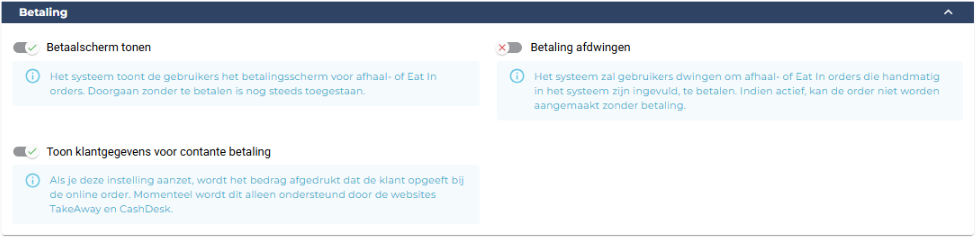
2.1 Show Payment Screen
When enabled:
-
The payment screen is shown for pickup and eat-in orders
-
Users may still proceed without completing payment
This provides flexibility while still encouraging correct payment flow.
2.2 Enforce Payment
When enabled:
-
Orders cannot be created without completing payment
-
Applies to manually created pickup and eat-in orders
Recommended for:
Strict payment environments or locations with minimal risk tolerance.
2.3 Show Customer Payment Data for Cash Payments
When enabled:
-
The cash amount entered by the customer is printed and stored
-
Currently supported by TakeAway and CashDesk websites
This improves transparency for cash transactions.
3. Delivery Time

3.1 Deliver New Orders As Soon As Possible
When enabled:
-
All new orders default to ASAP delivery
-
No fixed delivery time is assigned
When disabled:
-
Orders receive a predefined delivery time automatically
Recommended for:
Real-time delivery operations with flexible dispatching.
4. Average Preparation Time

4.1 Average Preparation Time for Orders
Example: 40 minutes
Defines the default preparation time required for:
-
Pickup orders
-
Eat-in orders
This value influences order promises, timelines, and internal countdowns.
4.2 Kitchen Countdown Timer Base Amount
Example: €300
Used to calculate the kitchen countdown timer:
Formula:(Order total ÷ Base amount) × 60 minutes
This creates a dynamic preparation timer based on order size.
5. Standard Processing Times

5.1 Automatically Reset Processing Times
When enabled:
-
Processing times reset automatically after closing time
-
Applies to both pickup and delivery orders
-
The system checks this hourly
You can define default processing times (in minutes) that are reapplied automatically.
6. New Order Alert Sound

This setting defines the audio alert played when a new order is created.
-
Helps staff respond immediately
-
Especially useful in noisy environments
-
Prevents missed orders during peak hours
The sound can be previewed directly in the interface.
7. Phone Validation

7.1 Phone Validation Type
Example: None / Basic / Strict
This setting determines whether phone numbers are validated when creating customer orders.
-
Ensures only valid phone numbers are entered
-
Helps reduce incorrect or unreachable contact details
Strict mode:
Employees must always enter a valid phone number.
Recommended for:
Delivery businesses that rely on customer contact.
8. Notes on Order List Rows

8.1 Show Notes on Order Rows
When enabled:
-
Customer and provider notes are shown directly in the order list
-
Improves visibility without opening the order
This does not apply to the order card screen.
9. Direct Completion of Pickup Orders

9.1 Show Pickup Orders Directly as Completed
When enabled:
-
Pickup orders are automatically marked as completed after payment
-
They do not appear in the order list
This reduces clutter for delivery-focused operations.
10. Order Visibility and Print Timing

10.1 Order Visibility and Print Time (Hours)
Example: 10 hours
This setting defines:
-
When orders become visible in the order list
-
When printers are allowed to print the order
By default, orders become visible and printable 10 hours before delivery.
11. Order Number Reset
The Order Number Reset settings define when and how order numbers are reset within the system. This is particularly useful for operational clarity, reporting, and kitchen workflows.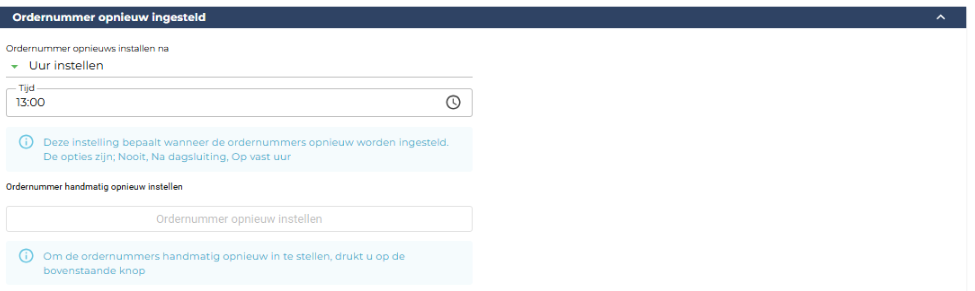
11.1 Automatically Reset Order Numbers
This setting determines when order numbers are reset automatically.
Available options include:
-
Never – Order numbers continue incrementing indefinitely
-
After Day Closing – Order numbers reset after the daily closing process
-
At a Fixed Time – Order numbers reset at a specific time of day
11.2 Reset at Fixed Time
Example: 13:00
When a fixed time is selected:
-
Order numbers reset daily at the configured time
-
Useful for businesses with split shifts or non-standard operating hours
This ensures that order numbering aligns with your operational day rather than calendar days.
11.3 Manual Order Number Reset
The system also allows manual resetting of order numbers.
-
A dedicated button is provided
-
Pressing it immediately resets the order counter
Use with caution:
Manual resets should only be performed by authorized staff, as they directly affect order tracking and reporting.
12. Automation – Order Acceptance Behavior
These automation settings control how product choices (modifiers) are handled during order acceptance.
12.1 Enforce Mandatory Choices in Order Acceptance Module
When enabled:
-
Users must select all required choices linked to a product
-
Orders cannot be saved until mandatory choices are completed
This prevents incomplete orders and reduces preparation errors.
Recommended for:
Products with required options such as size, cooking preference, or base selection.
12.2 Automatically Open Choice Screen When Only Optional Choices Exist
When enabled:
-
The choice screen opens automatically
-
This applies even if all available choices are optional
When disabled:
-
The choice popup appears only when mandatory choices exist
This setting influences the speed and user experience of order entry.