
How to Delete or Adjust an Order in Cashdesk
When working with Cashdesk, you may need to delete, cancel, or adjust an order. Below are the steps to manage orders from your POS environment.
Step 1: Go to the POS Environment
When opening Cashdesk, first navigate to your POS environment. From there, go to Order Management (Orderbeheer).
Step 2: Select the Order
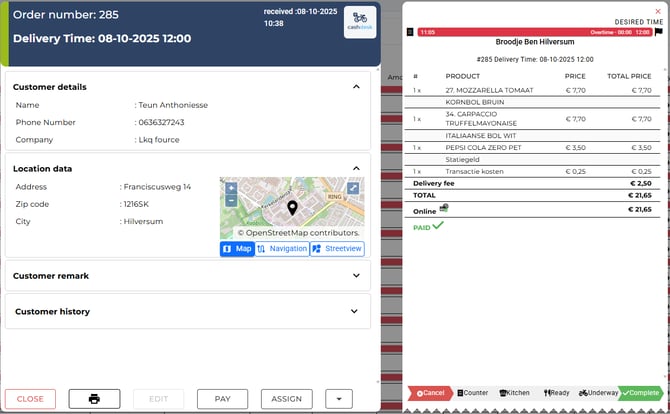
In Order Management, click on the order you want to manage. Once selected, the order details will appear on your screen. On the left side, you will see:
-
Customer details (name, phone number, company)
-
Location data (address, zip code, city, and a map with navigation and street view options)
-
Customer remark (if provided)
-
Customer history (previous orders from the same customer)
On the right side, you will see the ordered products, prices, delivery fee, and payment status (e.g. Paid).
Step 3: Cancel an Order
On the bottom-right side of the order screen, you will see a status bar with different action buttons.
-
To cancel an order, press the Cancel (Annuleren) button.
A reason must be entered in the text field to confirm and proceed with the cancellation.
Step 4: Adjust or Edit an Order
At the bottom of the order screen, you have several additional options:
-
Edit (Bewerken): Adjust order details if necessary.
-
Pay (Betalen): Add or adjust a payment for the order.
-
Assign (Toewijzen): Assign the order to a courier or driver.
-
Print (Afdrukken): Print the order details or receipt.
-
History (Ordergeschiedenis): Review the order history and see all changes made.
Additionally, you can see and manage the order status via the status bar (e.g. Counter, Kitchen, Ready, Underway, Complete). This allows you to follow and update the progress of the order.