
How to Add, Edit, Activate or Deactivate Postal Codes
Managing your delivery areas is an essential part of your store setup. Within your store environment, you can add new postal code groups, edit existing ones, or activate/deactivate them depending on your needs.
Step 1: Navigate to Delivery Areas
-
Log in to your store environment.
-
Go to Stores.
-
Within Stores, select Delivery Areas.
Step 2: Add a New Block (Postal Code Group)
-
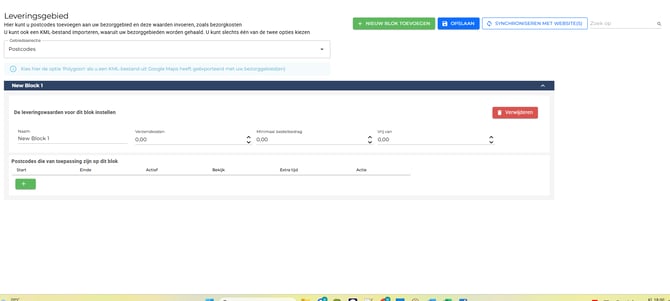
In Delivery Areas, you can add a new block.
-
A block represents a group of postal codes that share the same delivery rules.
-
For each block, you can define:
-
Delivery fee
-
Minimum order value
-
Free delivery from (threshold)
-
👉 If one or more values differ (for example, a different delivery fee for another region), you can simply create a new block with separate rules.
Step 3: Manage Postal Codes Within Each Block
-
Add the relevant postal codes to each block.
-
Each postal code you assign will follow the rules you set for that block.
- You can also specify extra delivery time for individual postal codes if certain areas take longer than others.
Step 4: Activate or Deactivate Postal Codes
-
You can check or uncheck postal code areas to temporarily activate or deactivate them.
-
This is especially useful during busy periods or quieter times, allowing you to control your delivery workload.
✅ By structuring your postal codes into blocks with clear rules, you ensure flexibility and efficiency in your delivery operations.