
Button Sizes – Functions and Configuration Guide
The Button Sizes section allows you to customize the visual layout of product buttons and option buttons within the POS interface. This setting is especially important for usability, screen readability, and staff efficiency—particularly during peak hours.
By adjusting button sizes, stores can optimize the POS experience based on:
-
The number of products on screen
-
The size of the POS display
-
Staff preference and workflow speed
-
Accessibility needs
This page contains two adjustable elements:
-
Product Button Size
-
Option Button Size
Below is a detailed explanation of each component.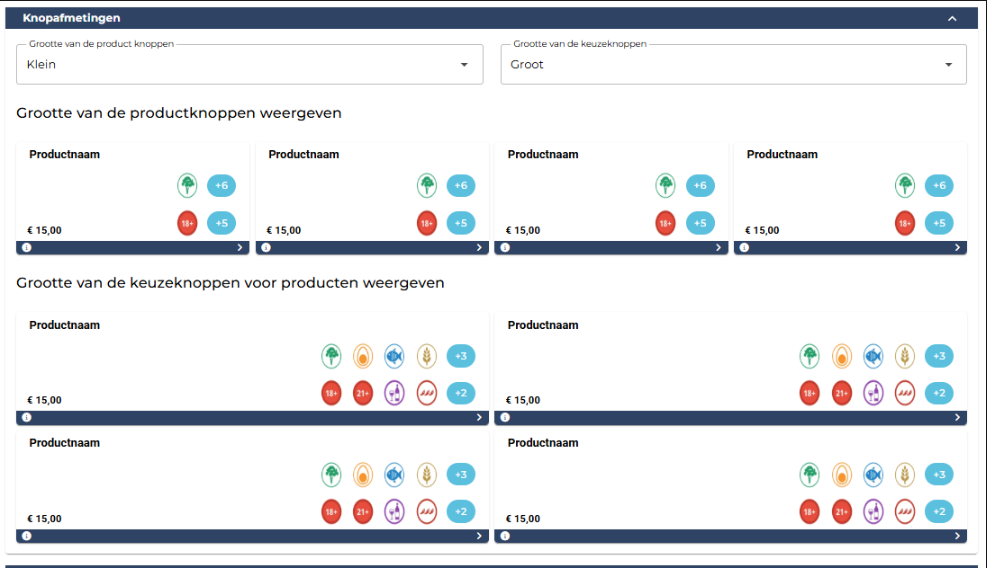
1. Product Button Size
Setting example: Small, Medium, Large
This setting determines the displayed size of the product buttons in the POS interface. These are the primary buttons used to select menu items during order creation.
What changes when adjusting product button size?
-
The overall dimensions of the product tiles
-
The spacing between products on the screen
-
The visibility and size of icons, age restrictions, and price indicators
-
How many product buttons fit on one page
-
The speed of visual recognition for staff
When to use each size
Small
Ideal for:
-
Stores with large menus (many products)
-
High-resolution or large screens
-
Staff that prefers seeing many items at once
Medium
Recommended for:
-
Balanced screens
-
Most restaurant types
-
Mixed POS environments (tablets + monitors)
Large
Best for:
-
Touchscreens used in fast-paced environments
-
Stores with fewer products per category
-
Staff needing increased visibility or accessibility
The preview images show exactly how each button size will appear, ensuring you can choose the configuration that fits your workflow.
2. Option Button Size
Setting example: Small, Medium, Large
Option buttons are the smaller icons used to add:
-
Extras
-
Toppings
-
Modifiers
-
Allergen indications
-
Age restrictions
-
Other product-specific attributes
What changes when adjusting option button size?
-
The size of add/remove buttons (e.g., +3, +2)
-
The visibility of allergen and dietary icons
-
Staffing speed in selecting product options
-
How many option buttons fit within the product tile
When to use each size
Small
Useful for:
-
Products with many modifiers
-
Saving space inside product tiles
-
Highly experienced staff familiar with the menu layout
Medium
Best for:
-
Mixed or general-purpose use
-
Menus with 3–6 options per product
Large
Suitable for:
-
Stores with many allergens or dietary icons
-
Staff who prefer larger touch targets
-
Environments where touchscreen precision is important (e.g., gloves, dim lighting)
The preview section illustrates how large option buttons appear alongside product tiles.